


Microsoft PowerApps is a low-code platform that helps businesses build custom applications quickly. It connects with data stored in Microsoft Dataverse, SharePoint, Microsoft 365, Dynamics 365, SQL Server, and many other cloud or on-premises systems. For organizations looking to digitize manual workflows without heavy development effort, PowerApps for business applications offers a practical and scalable solution.
With PowerApps for business applications, teams can create apps that automate processes, apply business logic, and improve day-to-day operations. These apps can be used for approvals, internal requests, inspections, data collection, inventory, service workflows, and more.
One of the key advantages of PowerApps for business applications is responsive design. Applications built on the platform work across browsers, smartphones, and tablets, making them suitable for both office and field teams.
By reducing the need for traditional coding, PowerApps for business applications makes app development more accessible to business users, analysts, and teams that want faster digital transformation.
Building Your First PowerApp
If you are getting started with PowerApps for business applications, one of the easiest ways to learn is by building a simple canvas app. In this guide, we will walk through the process of creating a basic three-screen CRUD app that can create, read, update, and delete records from a connected data source.
This beginner-friendly walkthrough shows how PowerApps for business applications can help you launch a working app in a short amount of time, even without prior development experience.
Steps to create your first app
Step 1: Sign In to PowerApps
Go to the PowerApps website and sign in using your Microsoft account or your organization’s credentials. This gives you access to the platform, available environments, and the data connections needed to start building PowerApps for business applications.
Step 2: Create a New Canvas App
a. Click on “Create” in the sidebar.
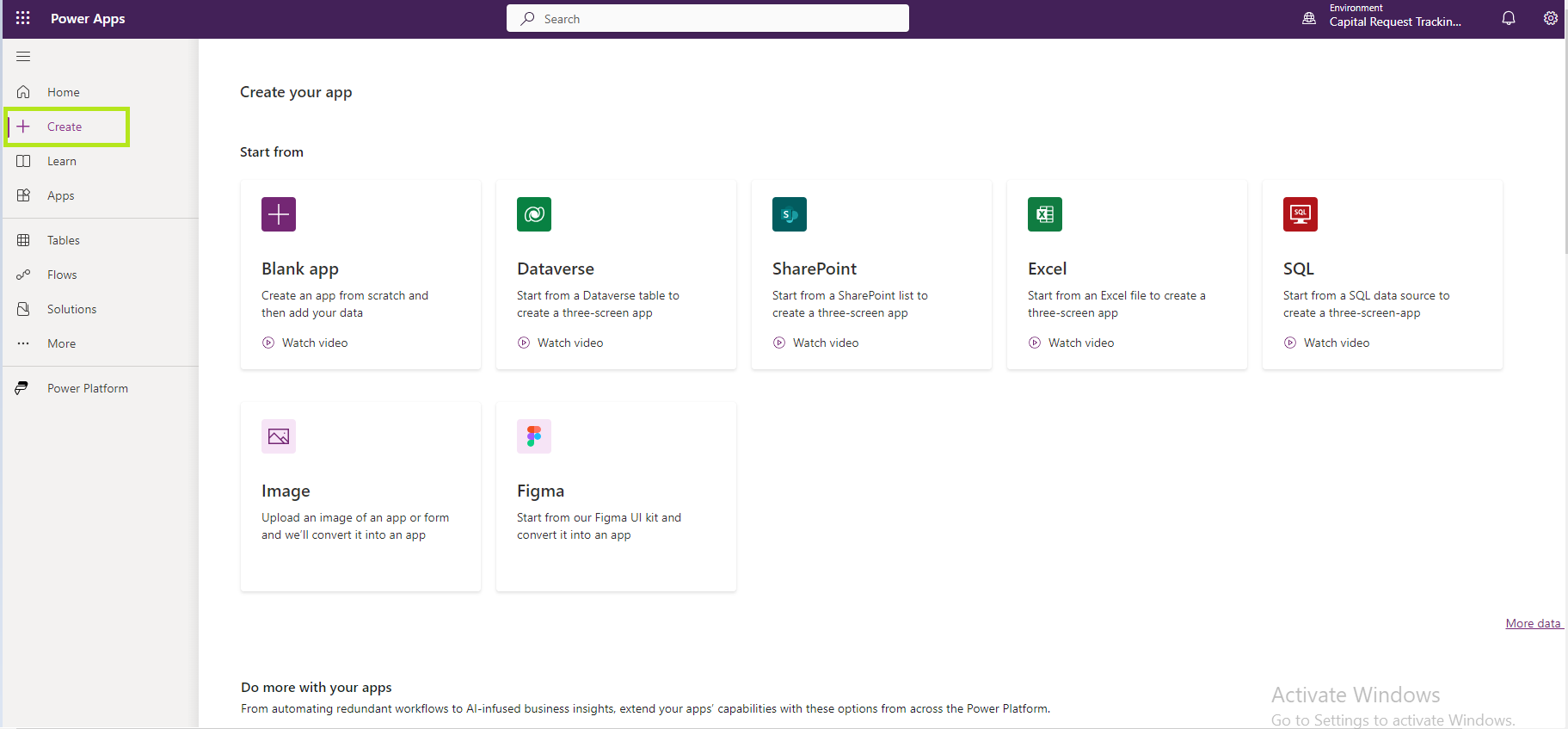
b. Choose a data source for your app from the wide range of supported connectors. One reason PowerApps for business applications is so useful is its ability to connect with more than 400 data sources. You can also start with a blank app and add multiple data sources later as your solution grows.
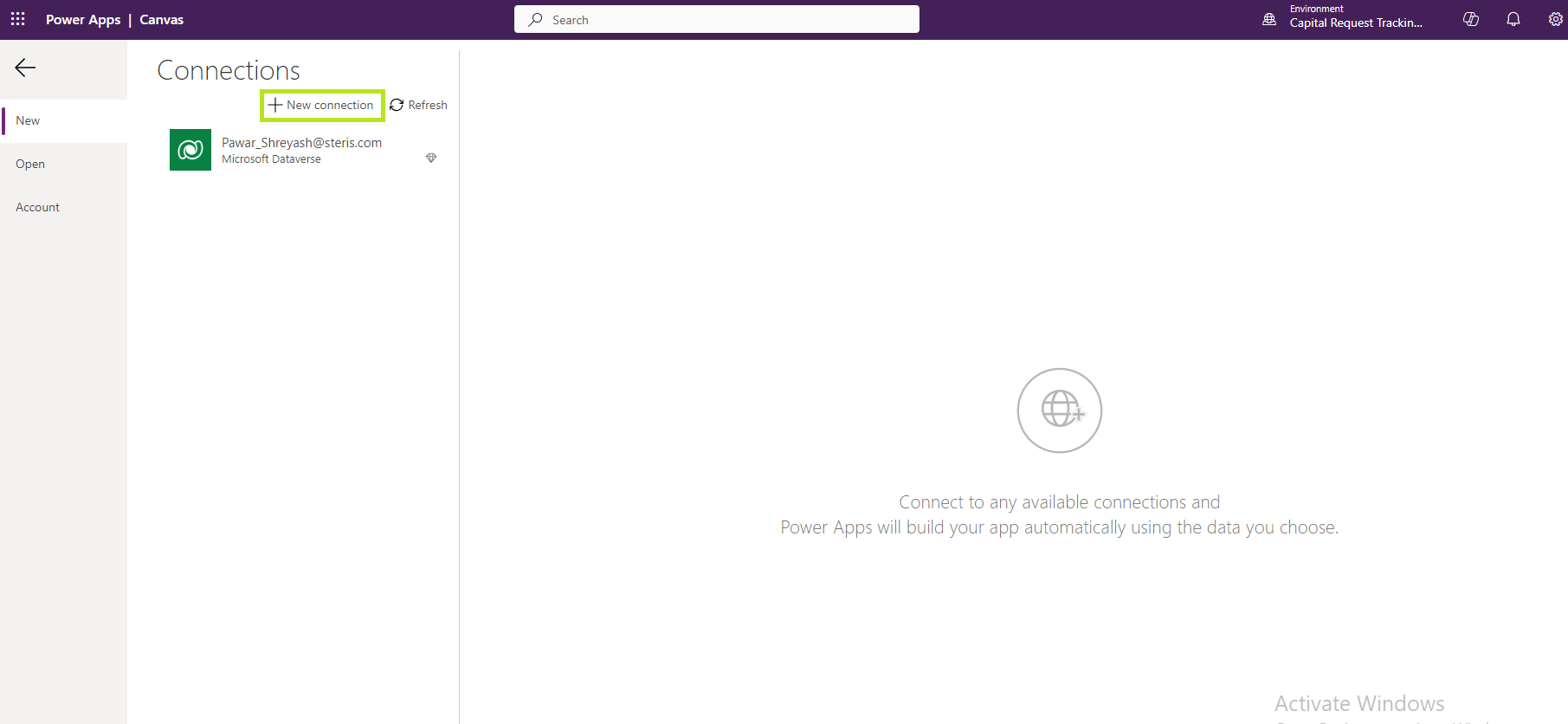
c. Click on “New Connection” to connect to your preferred data source.
d. Choose a table, such as a SharePoint list, Dataverse table, SQL table, or Excel file, based on the data you want your app to use.
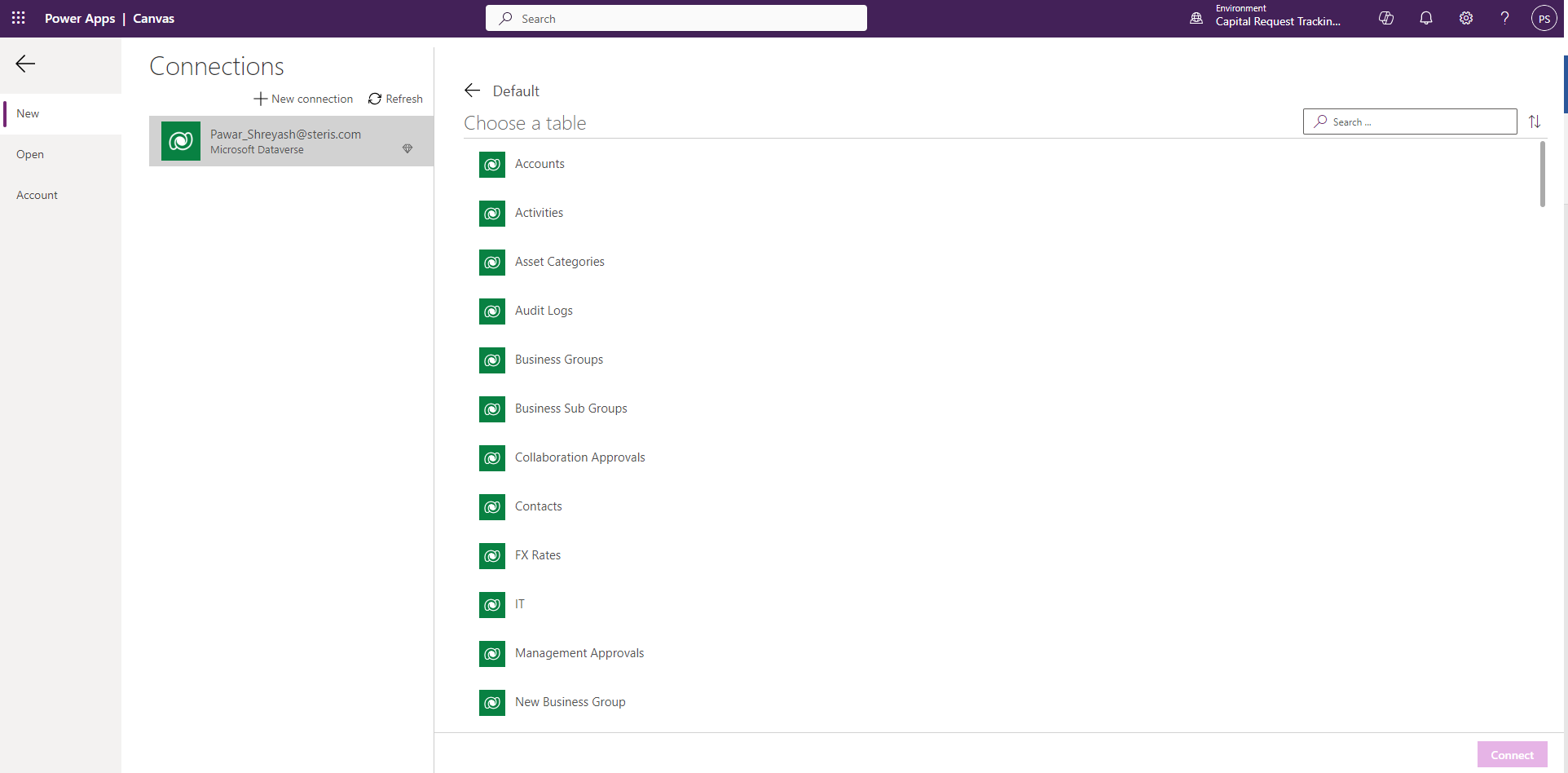
e. Click on “Connect” on the right, and PowerApps will automatically generate a three-screen app based on your selected table.
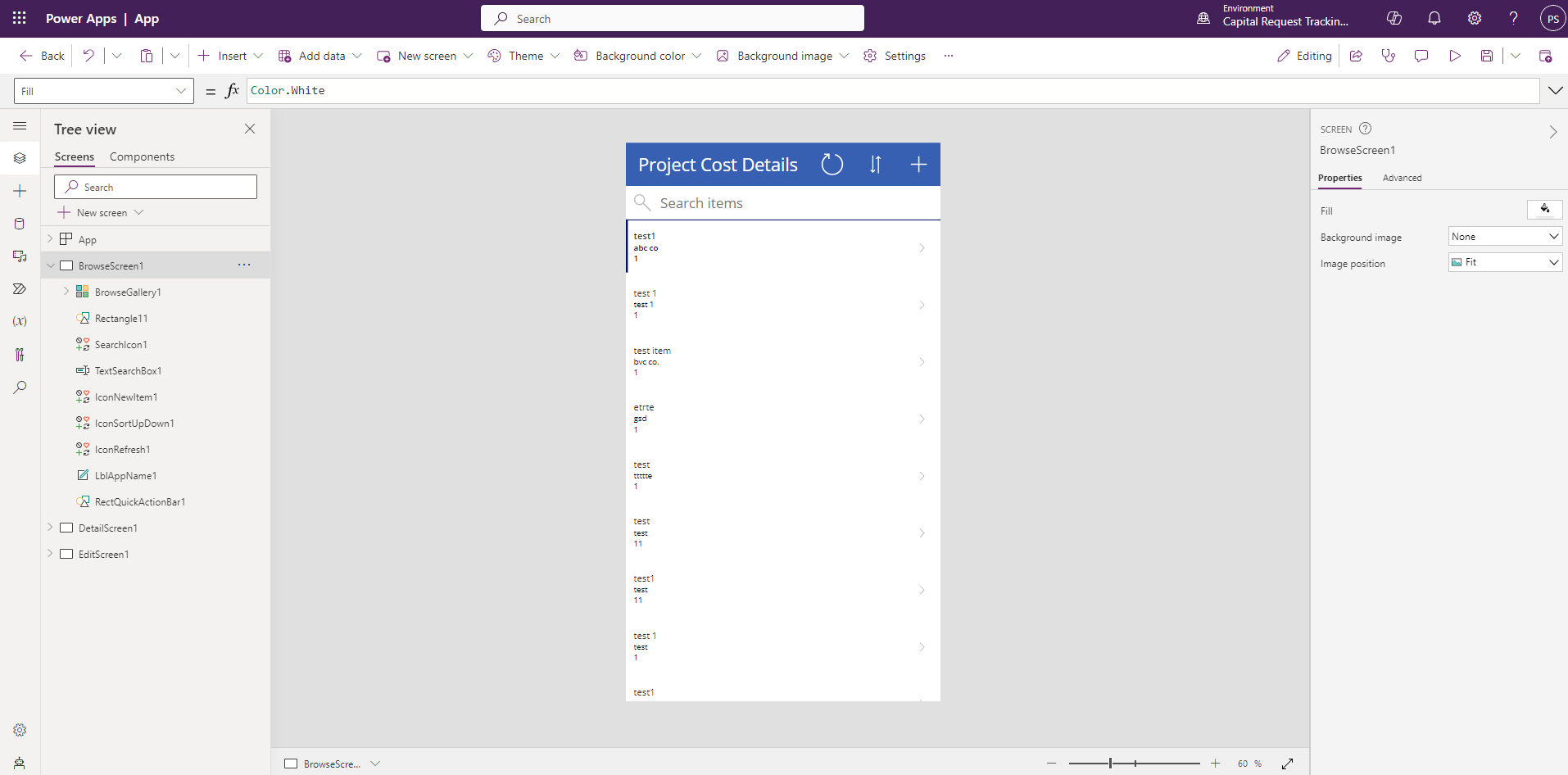
At this stage, you have already created a functional starting point. This is one of the major strengths of PowerApps for business applications: it reduces setup time and makes app creation faster for teams that want immediate value.
Step 3: Design Your App Interface
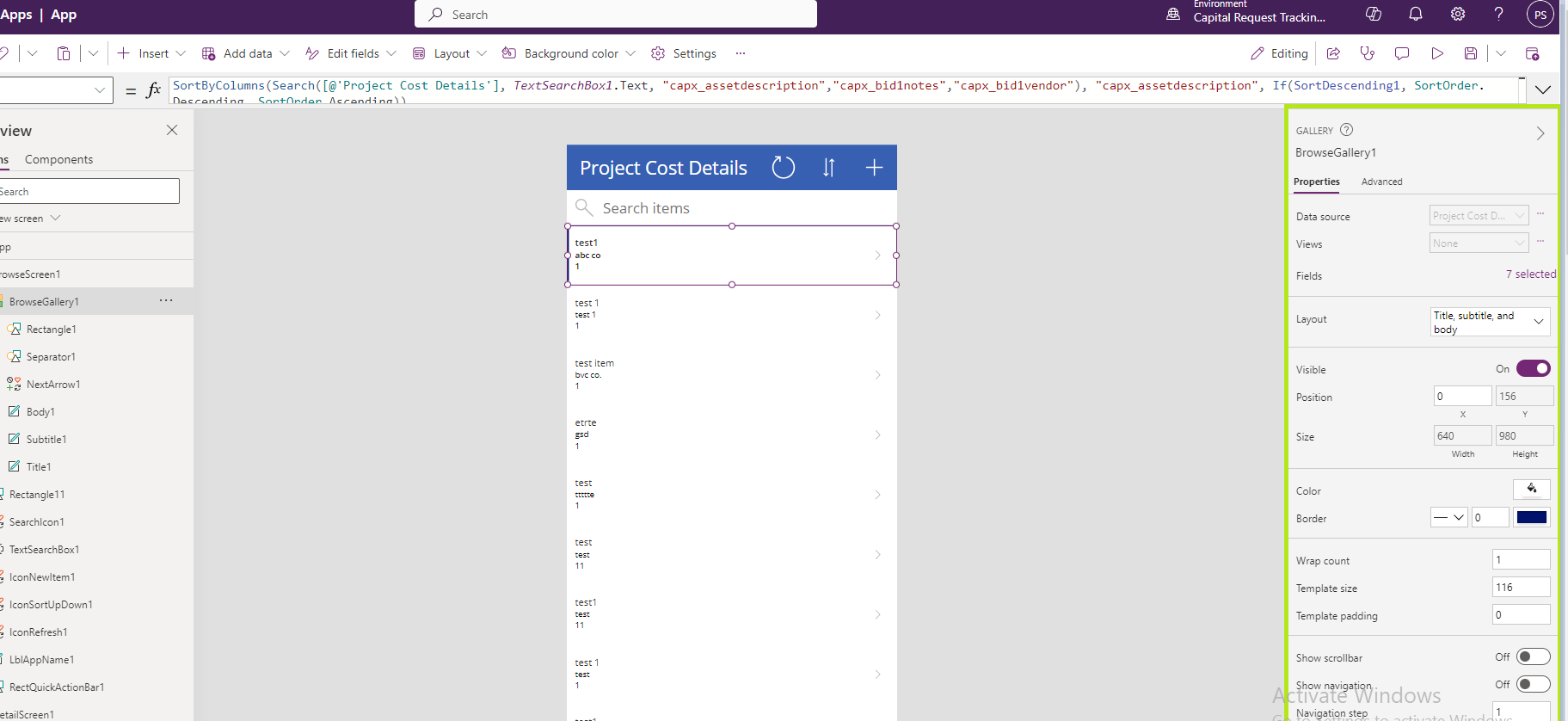
PowerApps provides a drag-and-drop designer that makes it easy to customize screens. You can select any element and modify its properties using the panel on the right. This makes PowerApps for business applications especially useful for teams that want to build clean, practical interfaces without extensive front-end coding.
Step 4: Add Logic to Your App
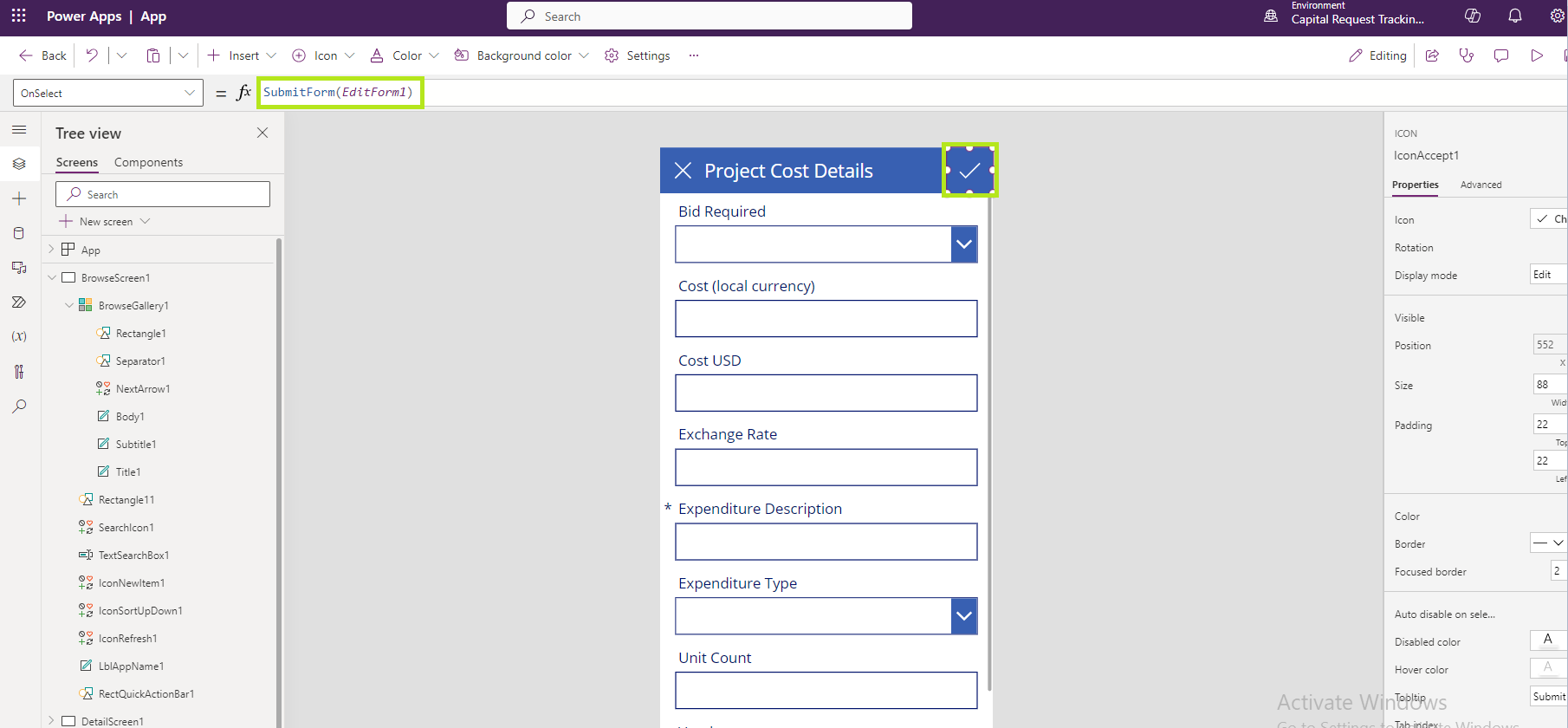
PowerApps offers a low-code formula-based approach for implementing application logic. For example, the “OnSelect” property of a submit button can trigger a function such as SubmitForm in the formula bar.
This is where PowerApps for business applications becomes especially valuable. You can build workflow-driven behavior, validations, automation triggers, and navigation logic without creating a traditional code-heavy application.
Step 5: Test Your App
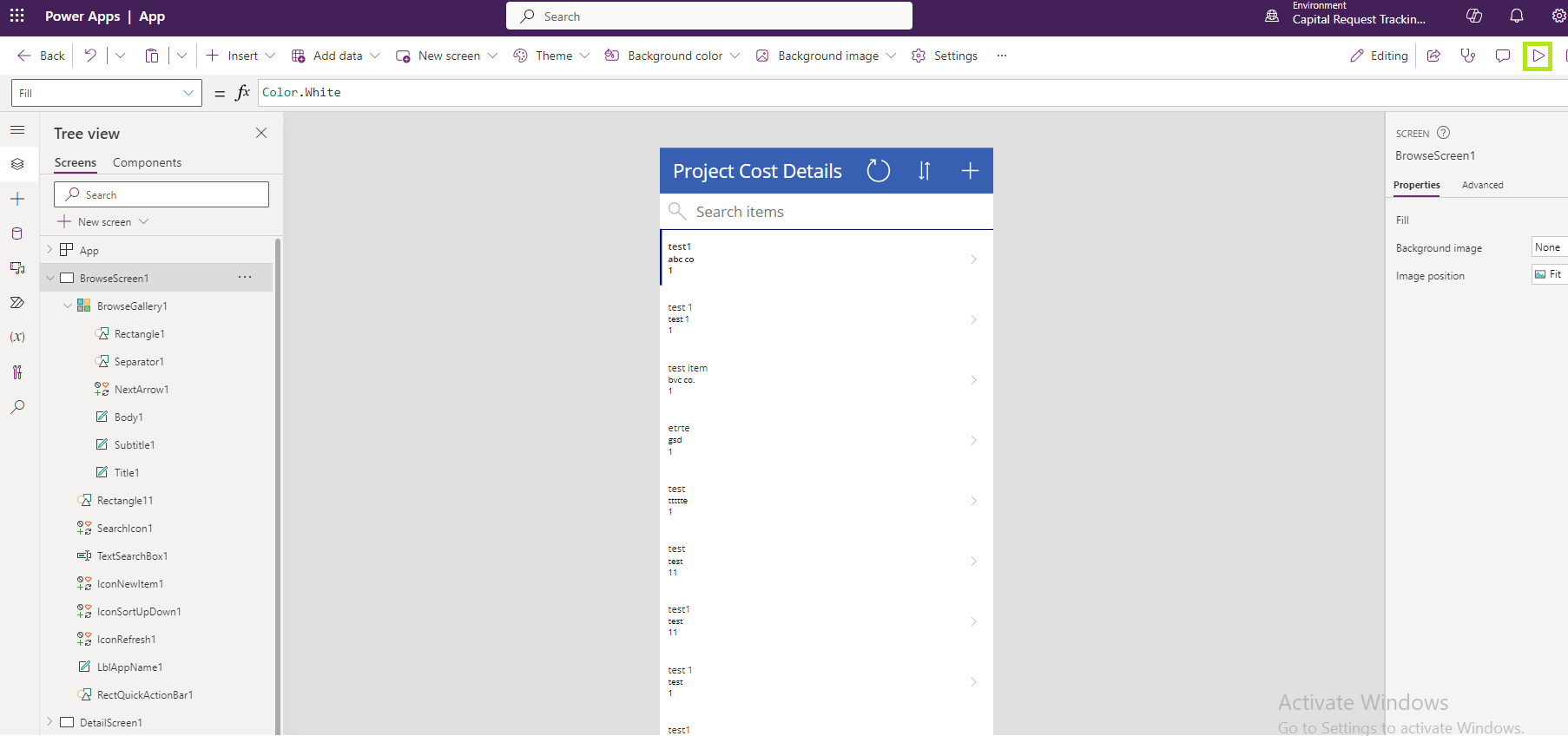
PowerApps allows you to test your app instantly. Click the “Play” button on the right to preview the application and verify that your forms, screens, and actions work correctly. Fast testing is another reason why PowerApps for business applications helps speed up app delivery.
Step 6: Save and Publish Your App
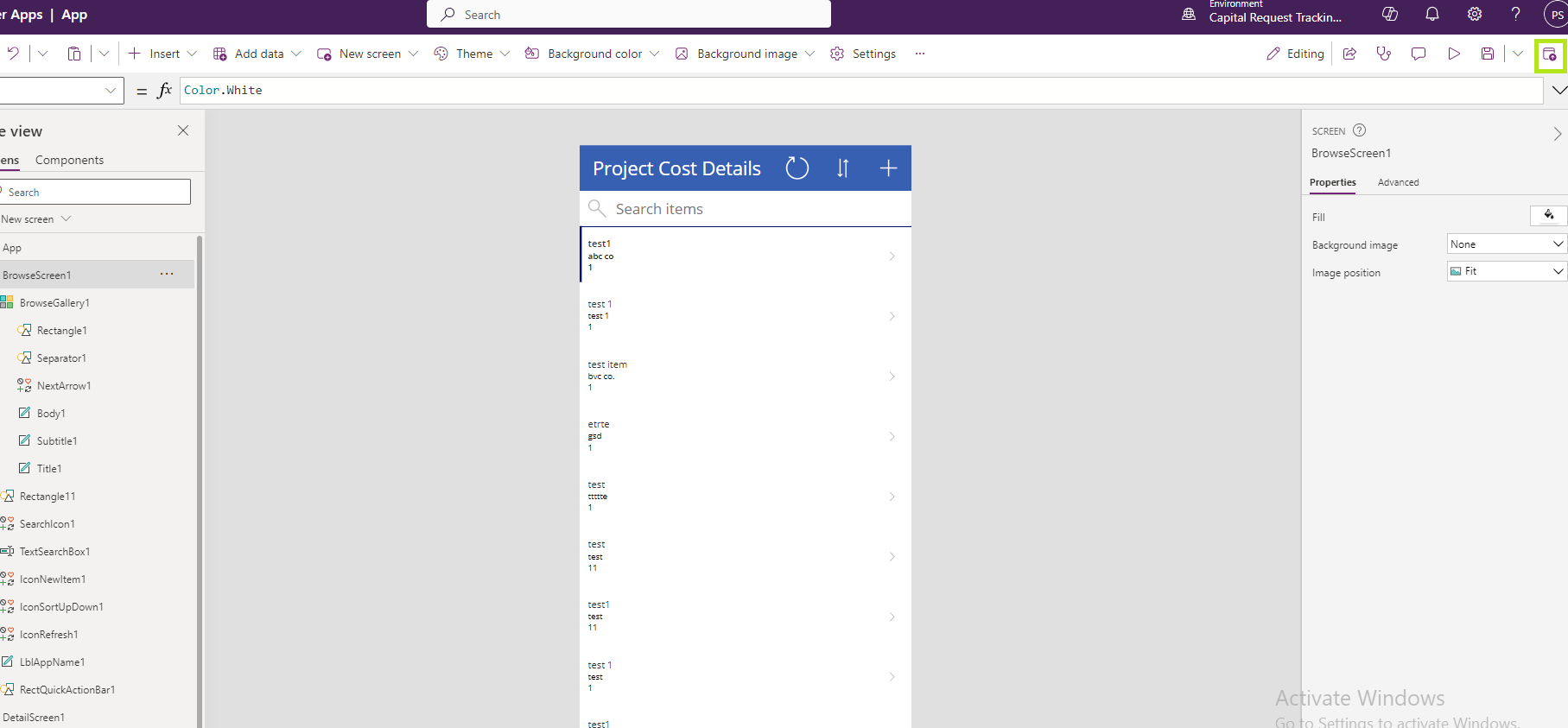
Once your app is ready, click on the “Publish” button to make it available to users. Saving and publishing your solution is the final step in deploying PowerApps for business applications across your organization.
In a relatively short time, you can use PowerApps for business applications to create a working custom app that supports business data and workflows. The platform’s low-code approach, Microsoft ecosystem integration, and responsive design make it a strong option for organizations that want faster digital transformation.
Whether you are building internal tools, approval systems, service apps, inspection apps, or data-entry solutions, PowerApps for business applications gives teams the flexibility to create tailored digital experiences without starting from scratch.
Start exploring PowerApps for business applications today and discover how quickly you can turn manual processes into efficient, connected, and scalable digital solutions.
In the last five years, we at CoReCo Technologies have worked with 60+ businesses of different sizes across the globe and across industries. We have developed products and platforms by selecting the right technology for each business need. Our focus has always been on solving the core problem with the most suitable technology, which is why we stay eager to explore different tools before choosing the best fit for a solution.
For more details about similar case studies, visit us at www.corecotechnologies.com, and if you would like to turn this virtual conversation into a real collaboration, please write to [email protected].
Shreyash Pawar
Software Engineer
CoReCo Technologies Private Limited